Add/Remove CDH Datasets
Prerequisite
This guide assumes you already have an initial CDH connection set up for your product. This connection setup only needs to be done once.
Context / General Background
The CDH architecture (especially with regards to multi-tenancy) differs quite a bit from our CAIP concepts. The following table and diagram describe the typical setup done after the initial CDH connection.
| CDH Concept | CAIP Concept |
|---|---|
| Use Case | "Product" — conceptually this maps best to what we call a "Product": one CAIP installation consisting of multiple clusters (stages & regions), namespaces (use cases), and two AWS accounts (NON-PROD & PROD). ⚠️ In the context of CAIP, a use case references one business case, typically built on one namespace. |
| Environment | Non-Prod & Prod AWS Account — maps to an AWS account used within the CAIP product. Typically CAIP consists of two accounts (NON-PROD & PROD); in a full setup both accounts have equivalent CDH environments. To get access, CDH datasets need to be assigned to the environment (the CAIP AWS account) — see Step 1. |
| (no equivalent — CDH does not know about CAIP namespaces) | Namespace — ⚠️ since CDH does not know about CAIP namespaces, namespace-specific permissions must be given explicitly via CAIP's self-service — see Step 2. |
| (no equivalent — CDH only differs between NON-PROD & PROD account) | Stage (test, int, e2e, prod) — to reduce complexity, CAIP does not allow stage-specific access configuration either; on our side the AWS account is the smallest scope. |
Please make sure the CDH environment AWS account you're requesting access to a dataset for is the same as the CAIP AWS account, to avoid permission errors. Since there are CDH-managed environments and CAIP accounts imported as CDH environments, this can generate some confusion.
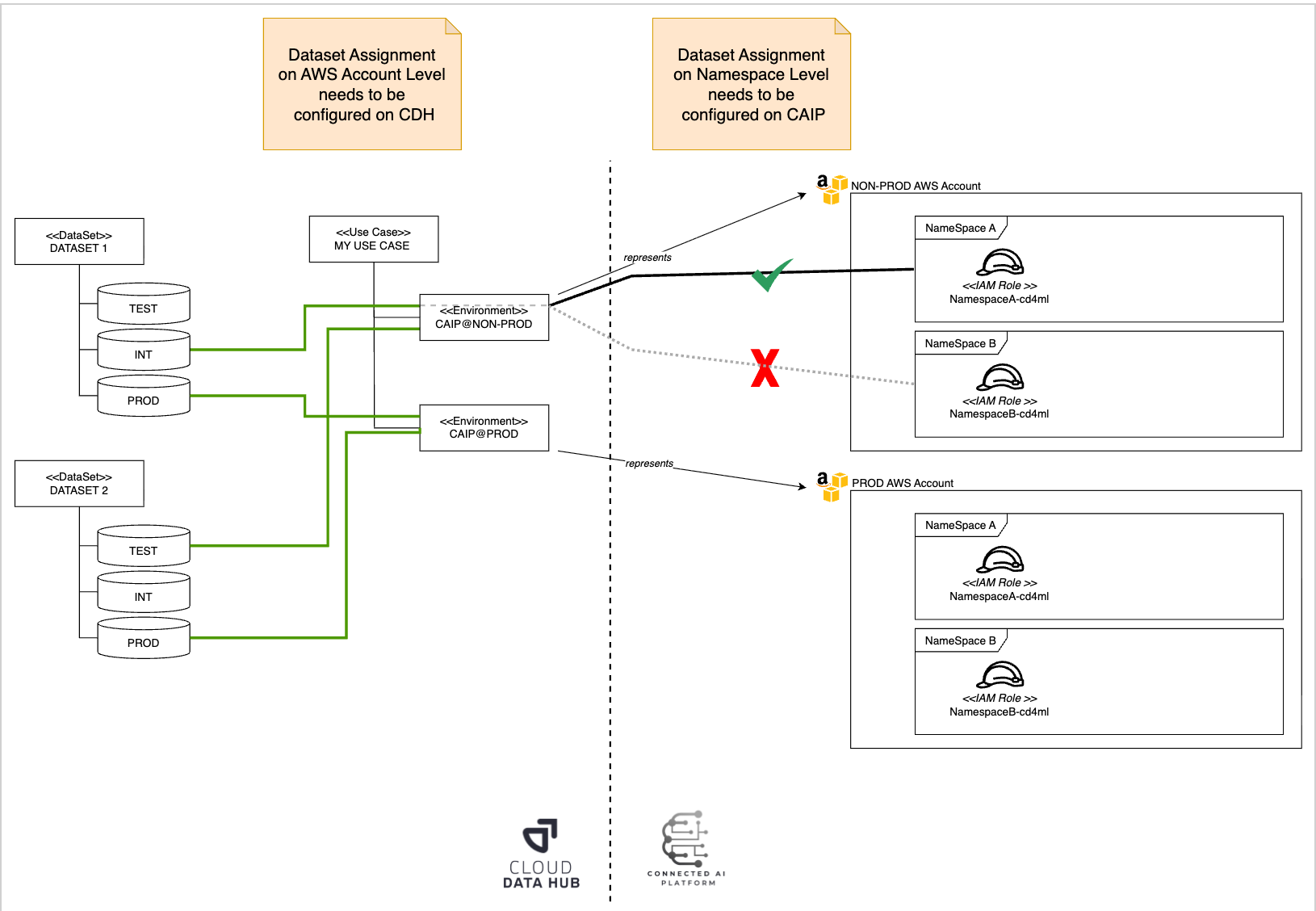
Step 1: Assign the dataset you need to respective CDH environments
- Raise a Data Access Request for this on the CDH environment.
- Generally, you can control which account (NON-PROD or PROD) should access which data, because every account is represented by a different CDH environment.
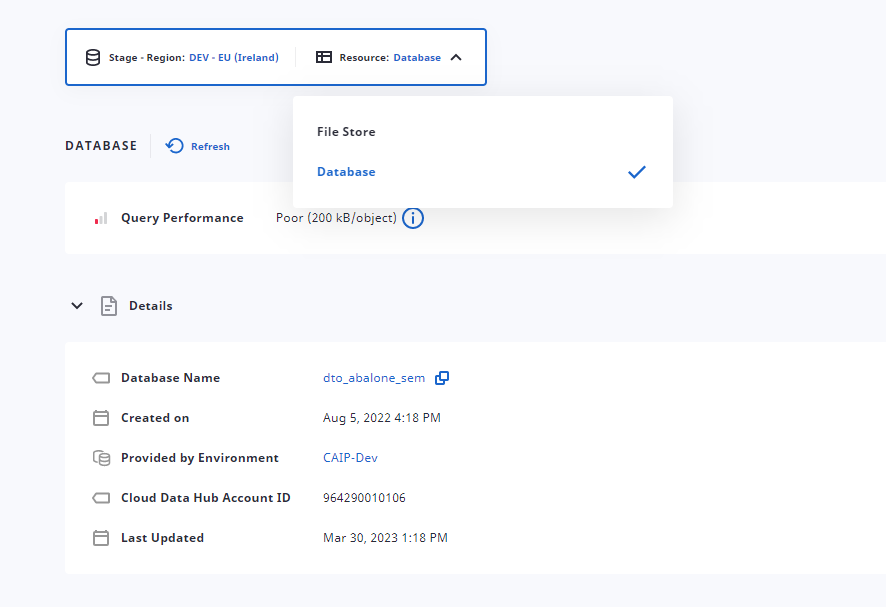
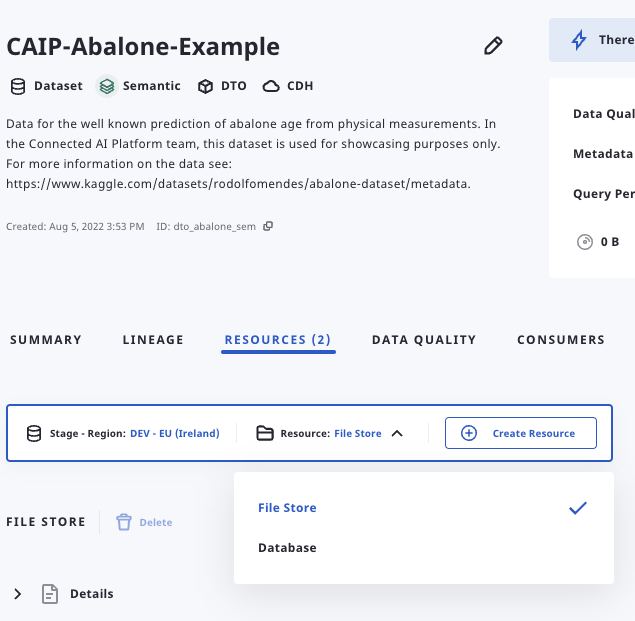
- On the CDH Data Catalog, navigate to the File Store Resource of your desired dataset.
- Get the database name:
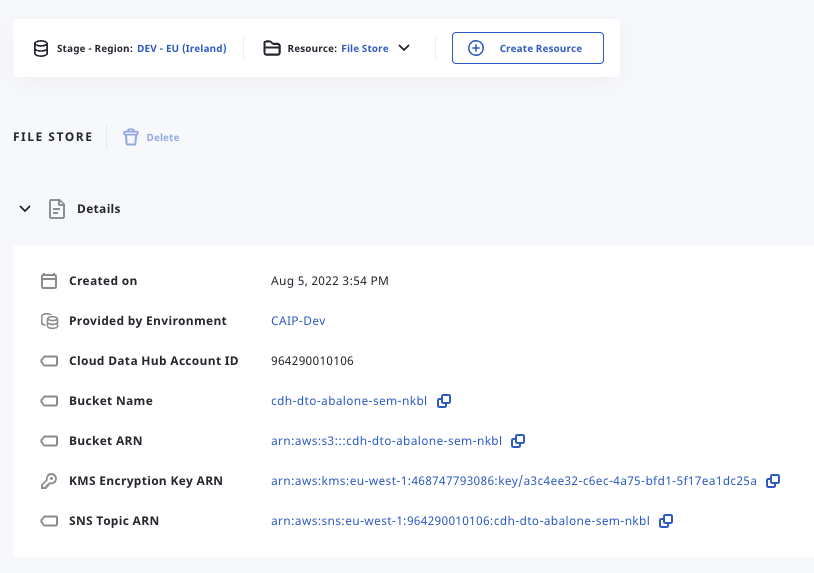
- Get the Bucket ARN and the KMS Encryption Key ARN by unfolding the Details section:
Step 2: Assign the dataset to respective CAIP namespace
Check the products repository for your cluster name (product name), open the folder and go to the product.yaml file. Find your namespace in the product.yaml file and add s3_arn and kms_key_arn to it (see example below).
kubeflow_profiles:
  <namespace>:
    editors:
      - ...

    cdh:
      data-regions: ["eu-west-1"]
      non-prod-account:
        s3:
          - s3_arn: <CUSTOM_ARN>
            kms_key_arn: <CUSTOM_KEY>
        glue:
          - database_name: <CUSTOM_GLUE_DB>
            kms_key_arn: <CUSTOM_KEY>
            s3_arn: <CUSTOM_ARN>
Don't forget to open a Pull Request and post it in the Connected AI Platform | PullRequest based Self Service Microsoft Teams channel.