GPU Compute
Introduction
CAIP comes with pre-configured GPU nodes that will be automatically spawned up when you request them via the right configuration. Following the documentation below, you can run your Jupyter Notebooks on GPUs or individual pipeline steps. In the background, CAIP/Orbit will spawn up GPU nodes for you and also remove them afterward.
Visual Studio Code Server Notebooks
In this section, we jump into how to setup a VS Code Server Notebook with GPU resource. At the bottom of this page we give more background on GPU capabilities.
As a Data Scientist/Developer/Engineer, you may wish to have a full-fledged coding environment where you can work on your projects but also experiment with your notebooks. If the experimentation involves certain AI algorithms in particular (e.g., LLMs), you may require high compute resources including GPUs. Here we show how to set this up quickly.
Setup Steps
- Navigate to your namespace in the CAIP Kubeflow GUI (e.g.,
https://cd4ml.eu-central-1.test.conn-ai.connected.bmw/?ns=ai-hworld) - Select Notebooks from the top left, and then New Notebook from the top right
- When provisioning the new notebook, consider the following steps to ensure GPU resource is available:
Configuration Requirements
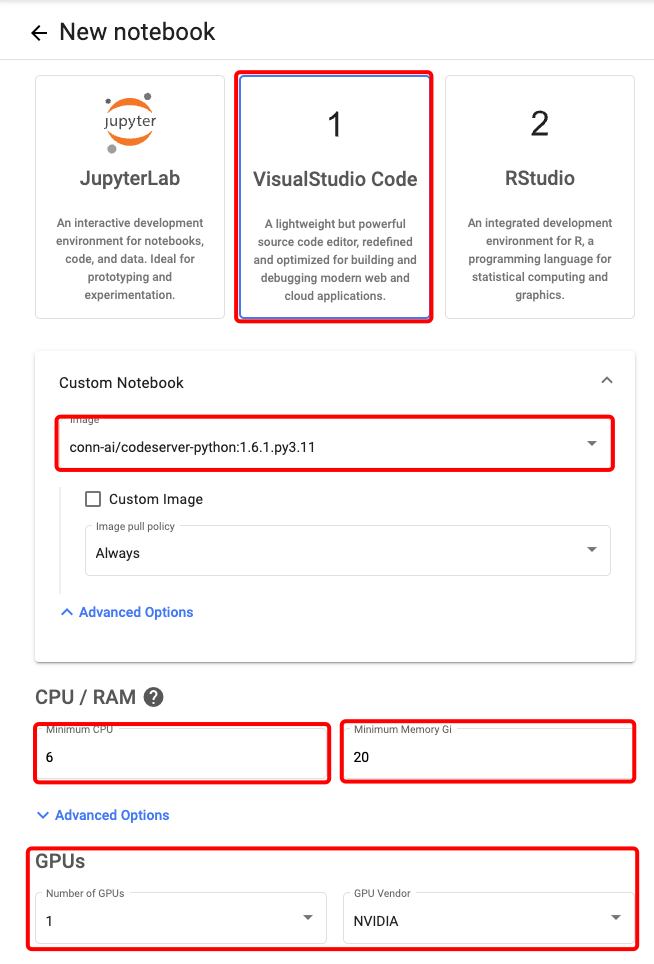
- Notebook Type: Select Visual Studio Code as the notebook type
- Custom Notebook: Ensure you select an option with python3.11 (python 3.8 exists for backward compatibility but would be removed soon) - For example:
conn-ai/codeserver-python:1.6.1.py3.11 - GPUs: Under the GPUs options ensure you select at least 1 GPU - and input NVIDIA as the vendor (this is currently the only vendor option)
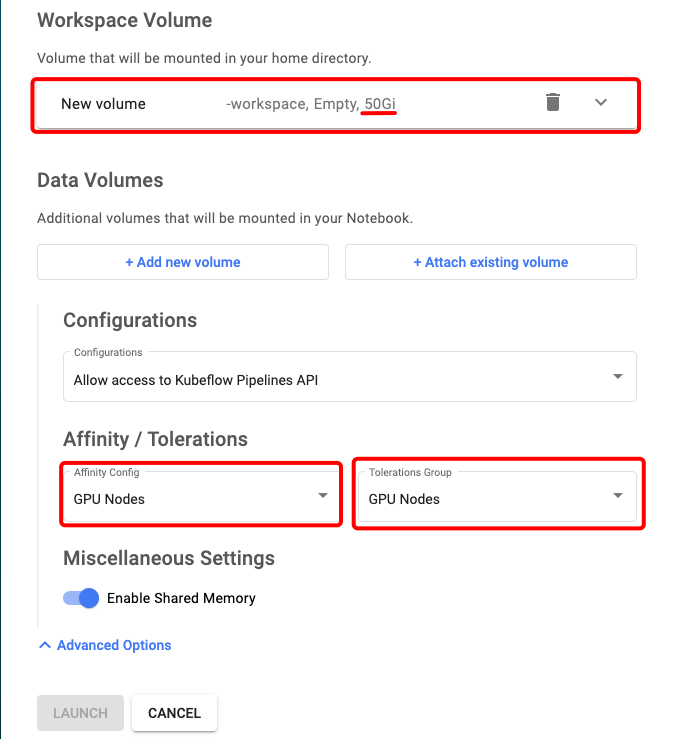
- Workspace Volume: Select a volume size of at least 30 GB (You may need more if you encounter errors while spawning or see disk full errors). Python GPU libraries are pretty large and from our experience, the default of 10Gi is not enough
- Advanced Options: Below the Data Volumes section, click Advanced Options, and under Affinity/Tolerations, set both boxes (Affinity config and Tolerations group) to GPU Nodes
- Resources: You should also ensure you provide enough CPU (listed in GHz) and RAM as the defaults will again not be enough for a large model. For instance, the Mistral 7B LLM model is approximately 10GB
Jupyter Notebooks
In this section, we jump into how to setup a Jupyter Notebook with GPU resource. At the bottom of this page we give more background on GPU capabilities.
As a Data Scientist, you may wish to rapidly experiment with ideas in a Notebook. If the experimentation involves certain AI algorithms in particular (e.g., LLMs), you may require high compute resources including GPUs. Here we show how to set this up quickly.
Setup Steps
- Navigate to your namespace in the CAIP Kubeflow GUI (e.g.,
https://cd4ml.eu-central-1.test.conn-ai.connected.bmw/?ns=ai-hworld) - Select Notebooks from the top left, and then New Notebook from the top right
- When provisioning the new notebook, consider the following steps to ensure GPU resource is available:
Configuration Requirements
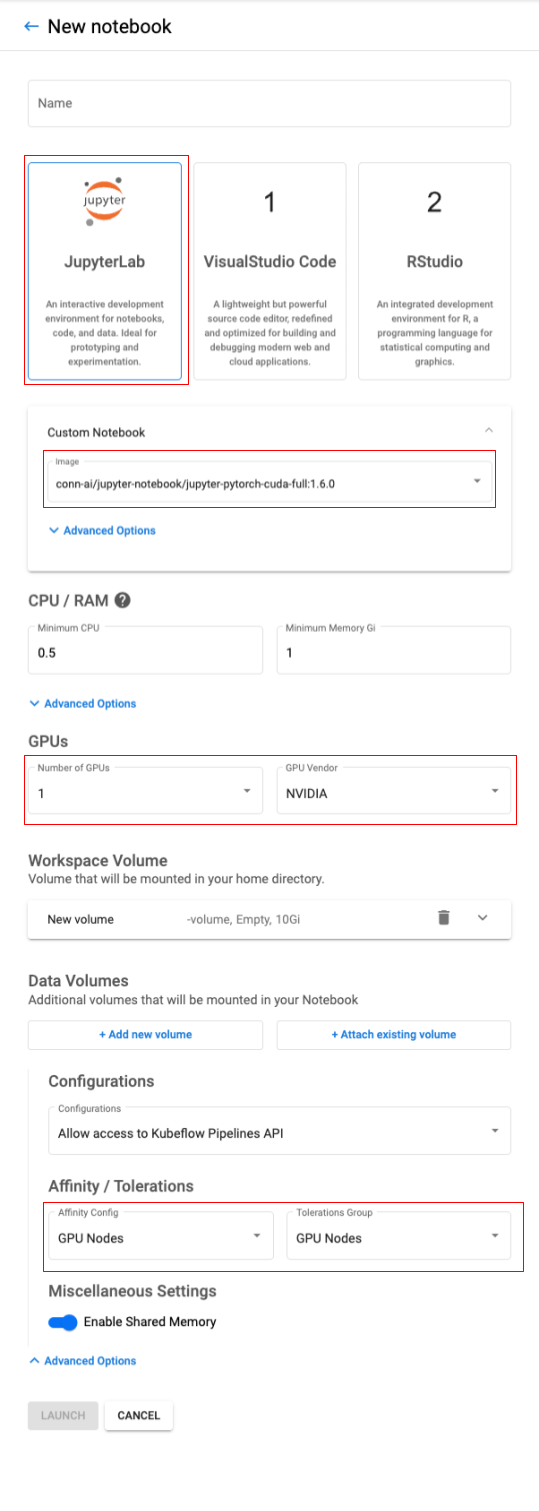
- Notebook Type: Select JupyterLab as the notebook type
- Custom Notebook: Ensure you select an option with CUDA (The programming model for NVIDIA GPUs) e.g.,
conn-ai/jupyter-notebook/jupyter-pytorch-cuda-full:1.6.0 - GPUs: Under the GPUs options ensure you select 1 GPU - and input NVIDIA as the vendor (this is currently the only vendor option)
- Workspace Volume: Select a volume size of at least 30 GB (You may need more if you encounter errors while spawning or see disk full errors). Python GPU libraries are pretty large and from experience the default of 10Gi is not enough
- Advanced Options: Below the Data Volumes section, click Advanced Options, and under Affinity/Tolerations, set both boxes (Affinity config and Tolerations group) to GPU Nodes
- Resources: You should also ensure you provide enough CPU (listed in GHz) and RAM (in GB) as the defaults may not be enough for a large model. For instance, the Mistral 7B LLM model is approximately 10GB
Using GPUs in your Kubeflow Pipeline
In your pipelines you can mark individual steps to be executed on a GPU. To do this in practice, we recommend following our example repository.
Key Considerations
GPU Resource Requirements:
- GPU libraries and models require significant disk space (minimum 30GB recommended)
- Large language models can require substantial RAM (e.g., Mistral 7B ≈ 10GB)
- Ensure adequate CPU allocation for optimal performance
Node Management:
- GPU nodes are automatically provisioned when requested
- Nodes are automatically cleaned up after use to optimize resource utilization
- Use GPU-specific tolerations and affinity settings for proper scheduling
Best Practices:
- Use CUDA-enabled container images for GPU workloads
- Monitor resource usage to optimize cost and performance
- Test with smaller models before scaling to larger GPU-intensive workloads