Hands on Guide - AgentsSDK
This guide walks you through building a Calculator Agent using the CAIP Agents SDK.
You'll learn core SDK concepts, tool integration.
Step 1 - Create Agent Metadata in CAIP
Before building your agent, you need to register agent metadata in CAIP:
1.1 Get Your Space ID
You need a Space ID to create agents. Choose one of these options:
Use Your Own Space
- If you have access to a CAIP Space, use its Space ID
- You can find your Space ID in the CAIP dashboard on Space Overview Page
1.2 Create Your Agent Metadata
-
Navigate to CAIP Portal: Open https://caip.bmw.cloud/ in your browser
-
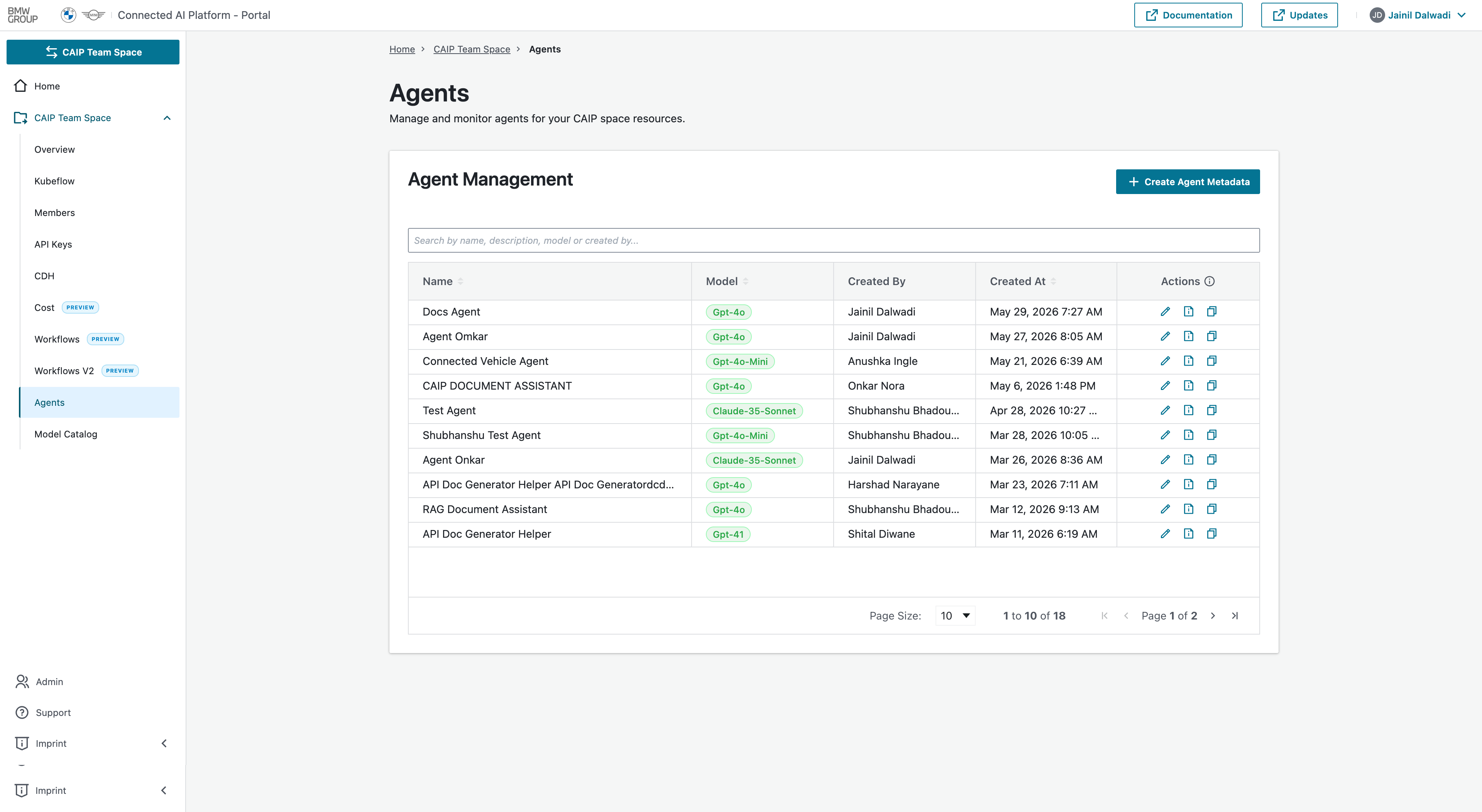
Select your Space & Navigate to Agent Management Section
-
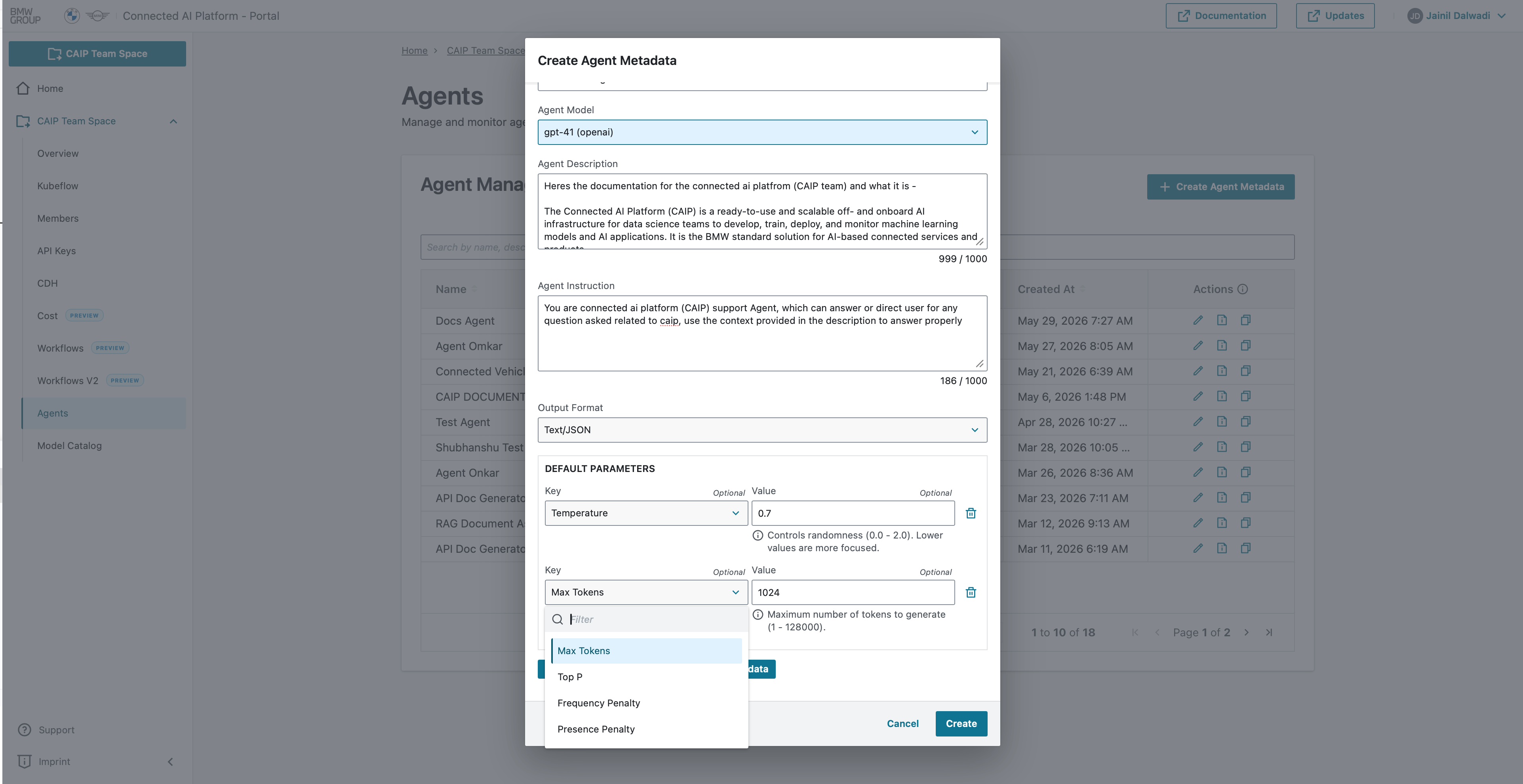
Create Agent Metadata:
Required Fields:
- Name: A unique identifier for your agent (e.g., "Calculator Agent", "Support Bot")
- Agent Model: The underlying LLM model to use
- Examples:
gpt-4,gpt-3.5-turbo,claude-3-sonnet - Choose based on your use case complexity and budget
- Examples:
- Agent Description: A brief overview of what your agent does
- Helps team members understand the agent's purpose
- Example: "A mathematical agent that performs calculations"
- Agent Instructions: System-level instructions that define the agent's behavior
- Sets the agent's personality, tone, and capabilities
- Example: "You are a helpful mathematical assistant. Provide accurate calculations and explain your reasoning."
- Output Format: Specify the structure of agent responses
- Options:
text/json,
- Options:
Optional Configuration Fields:
Add Default Parameter
- Available parameters depend on the selected Agent Model
- Only parameters supported by the selected model are displayed in the dropdown
- Select a parameter and provide the corresponding value
- Temperature (0.0 - 2.0): Controls randomness in responses
0.0= Deterministic, focused responses1.0= Balanced creativity and consistency (default)2.0= Maximum creativity and randomness
- Max Tokens: Maximum length of the response
- Default:
1000 - Higher values allow longer responses but cost more
- Default:
- Top P (0.0 - 1.0): Nucleus sampling parameter
- Controls diversity of word selection
- Default:
1.0 - Lower values (e.g.,
0.9) = more focused responses
- Frequency Penalty (-2.0 - 2.0): Reduces repetition of tokens
- Positive values discourage repeating the same words
- Default:
0.0 - Range:
-2.0(encourage repetition) to2.0(strongly discourage)
- Presence Penalty (-2.0 - 2.0): Encourages topic diversity
- Positive values encourage discussing new topics
- Default:
0.0 - Range:
-2.0(stay on topic) to2.0(explore new topics)
- Metadata: Additional key-value pairs for your use case
- Store project info, version numbers, or any custom data
- Example:
{"version": "1.0", "department": "Engineering"}
- Click Create
Configuration Best Practices
- Start with default values and adjust based on your agent's behavior
- Use lower temperature (0.2-0.5) for factual/deterministic tasks
- Use higher temperature (0.7-1.0) for creative/conversational tasks
- Set appropriate max tokens based on expected response length
Setup
If you have already completed the Installation guide, you can skip the virtual environment and SDK installation steps here. Just make sure your .env file contains the values below and continue with Create Your First Agent.
Create a .env file in your project root directory:
touch .env
Add the following variables:
CAIP_API_KEY is a unified key for both Agents API and LLM API access. See CAIP API Key Authentication to obtain your key.
# Required: Your API key ( Works for both Agents API & LLM API)
CAIP_API_KEY=your_actual_agents_api_key_here

# Required: Your Space ID (from the CAIP Portal overview page)
CAIP_SPACE_ID=your_space_id_here

# Required: Your Agent ID (Obtain after creating agent metadata through the self service portal)
CAIP_AGENT_ID=your_agent_id_here

# Optional: Region for SDK routing. Supported values: ROW or CN
# Default is ROW when not set.
CAIP_REGION=ROW

# Optional: If you need to disable SSL verification (not recommended for production)
CAIP_VERIFY_SSL=false

# Optional: Langfuse Observability is enabled by default.
# Provide keys to send traces to your Langfuse project.
LANGFUSE_SECRET_KEY="sk-lf-..."
LANGFUSE_PUBLIC_KEY="pk-lf-..."
LANGFUSE_BASE_URL="https://langfuse.caip.bmw.cloud"

# Optional: Disable Langfuse Observability if you do not want to emit traces
# CAIP_LANGFUSE_OBSERVABILITY=false
If CAIP_REGION is not set, the SDK routes to ROW resources by default.
If you have not installed the SDK yet, complete Installation first and then return to this guide.
Create Your First Agent
Let's create a minimal agent application to verify everything works.
Create a file named app.py
"""Minimal agent to test CAIP connection."""

import asyncio
import os
from dotenv import load_dotenv
from caip_agents_sdk import CAIPAgentsClient

async def main():
    # Load environment variables
    load_dotenv()

    # Initialize client
    client = CAIPAgentsClient()

    # Create agent
    agent = client.create_agent(
        framework="pydantic_ai",
        agent_id=os.getenv("CAIP_AGENT_ID")
    )

    # Initialize agent
    await agent.initialize()
    print("✅ Agent initialized successfully!")

    # Create conversation thread
    thread = await client.create_thread(
        agent_id=os.getenv("CAIP_AGENT_ID"),
        thread_data={"title": "Test Session", "status": "open"}
    )
    agent.thread_id = thread.threadId
    print(f"✅ Thread created: {thread.threadId}")

    # Test a simple query (no custom tools yet)
    response = await agent.run("Hello! Can you help me?")
    print(f"\nAgent: {response}\n")

if __name__ == "__main__":
    asyncio.run(main())
Run Your Agent
python app.py

**Expected Output**
✅ Agent initialized successfully!
✅ Thread created: thread_abc123

Agent: Hello! Yes, I'm happy to help you with any calculations or unit conversions you need. What can I assist you with?
🎉 Success! Your agent is working. Now let's add custom tools to give it calculator capabilities.
Add Custom Tools
Now that your agent works, let's add custom calculator tools. Read more information about Tools
Create a file named tools.py
"""Calculator tools for the agent."""

def add_numbers(a: float, b: float) -> float:
    """Add two numbers together."""
    return a + b

def multiply_numbers(a: float, b: float) -> float:
    """Multiply two numbers."""
    return a * b

def divide_numbers(a: float, b: float) -> float:
    """Divide a by b."""
    if b == 0:
        raise ValueError("Cannot divide by zero")
    return a / b

def calculate_percentage(amount: float, percentage: float) -> float:
    """Calculate percentage of an amount."""
    return (amount * percentage) / 100

def convert_distance(value: float, from_unit: str, to_unit: str) -> float:
    """Convert distance between kilometers, miles, meters, and feet."""
    # Convert to meters first
    to_meters = {
        "kilometers": 1000,
        "miles": 1609.34,
        "meters": 1,
        "feet": 0.3048
    }

    if from_unit not in to_meters or to_unit not in to_meters:
        raise ValueError(f"Unsupported units: {from_unit}, {to_unit}")
    meters = value * to_meters[from_unit]
    return meters / to_meters[to_unit]
Update app.py to register the tools
import asyncio
import os
from dotenv import load_dotenv
from caip_agents_sdk import CAIPAgentsClient
import tools

async def main():
    # Load environment variables
    load_dotenv()

    # Initialize client
    client = CAIPAgentsClient()

    # Create agent
    agent = client.create_agent(
        framework="pydantic_ai",
        agent_id=os.getenv("CAIP_AGENT_ID")
    )

    # Initialize agent
    await agent.initialize()
    print("✅ Agent initialized successfully!")

    # Create conversation thread
    thread = await client.create_thread(
        agent_id=os.getenv("CAIP_AGENT_ID"),
        thread_data={"title": "Calculator Session", "status": "open"}
    )
    agent.thread_id = thread.threadId
    print(f"✅ Thread created: {thread.threadId}")

    # Register tools
    @agent.tool_plain
    def add_numbers(a: float, b: float) -> float:
        """Add two numbers together."""
        return tools.add_numbers(a, b)

    @agent.tool_plain
    def multiply_numbers(a: float, b: float) -> float:
        """Multiply two numbers."""
        return tools.multiply_numbers(a, b)

    @agent.tool_plain
    def calculate_percentage(amount: float, percentage: float) -> float:
        """Calculate percentage of an amount."""
        return tools.calculate_percentage(amount, percentage)

    # Test queries with tools
    queries = [
        "What is 25 plus 17?",
        "Calculate 15% of $200",
        "Multiply 8 by 7"
    ]

    for i, query in enumerate(queries, 1):
        print(f"\n{'='*70}")
        print(f"Query {i}: {query}")
        print('='*70)
        response = await agent.run(query)
        print(f"Agent: {response}")

if __name__ == "__main__":
    asyncio.run(main())
Run Your Agent
python app.py

**Expected Output**
✅ Agent initialized successfully!
✅ Thread created: thread_abc123

======================================================================
Query 1: What is 25 plus 17?
======================================================================
Agent: The sum of 25 and 17 is 42.

======================================================================
Query 2: Calculate 15% of $200
======================================================================
Agent: 15% of $200 is $30.

======================================================================
Query 3: Multiply 8 by 7
======================================================================
Agent: 8 multiplied by 7 equals 56.
🎉 Congratulations! You've built a fully functional calculator agent with custom tools.
Logging
SDK logging is disabled by default. To enable it, import and call enable_logging() before initializing the client.
Enable Logging
from caip_agents_sdk import CAIPAgentsClient, enable_logging

# Enable logging (default level: INFO)
enable_logging()

# Or with a specific level
enable_logging("DEBUG")

client = CAIPAgentsClient()
Write Logs to a File
from caip_agents_sdk import enable_logging, add_file_handler

enable_logging()
add_file_handler("caip_sdk.log", level="DEBUG")
Disable Logging
from caip_agents_sdk import disable_logging

disable_logging()
Next Steps
Advanced Topics
- RAG & Vector Stores - Add knowledge retrieval to your agents
- Tools - Learn about built-in tools like KnowledgeBaseSearchTool
- Agents - Deep dive into agent configuration and lifecycle
- Multi-Agentic Systems - Build orchestrated workflows with routers, specialist workers, tools, and human approval
- Langfuse Observability - Trace, debug, and monitor your agents with Langfuse
- Examples - See complete real-world implementations
Build a Knowledge-Based Agent
Want to give your agent access to your own documents and data? Check out the RAG & Vector Stores guide to learn how to:
- Create vector stores for your documents
- Generate and store embeddings
- Use the
KnowledgeBaseSearchToolfor semantic search - Build agents that can answer questions from your knowledge base